
Building a High-Performance Home Setup for Web Developers
The gap between a tolerable home office and one that actually supports serious work is smaller than most people expect, and it has less to do with spending a lot of money than with making a few deliberate choices. What goes on your desk, how your displays are positioned, whether the cables behind everything are the right spec for what you’re running. These are largely one-time decisions that, once made correctly, mostly disappear into the background and stop costing you attention.
Most developers setting up at home work backward from the machine. The computer is usually fine. Then comes whatever monitor was on sale, whichever chair was already in the room, and a tangle of cables sorted out later. If you plan to run more than one screen, you’ll need to buy HDMI cables that match your display’s input specifications and have enough length to route without putting tension on the ports. Sorting that infrastructure out early saves hours of troubleshooting later.
Getting Your Display Configuration Right
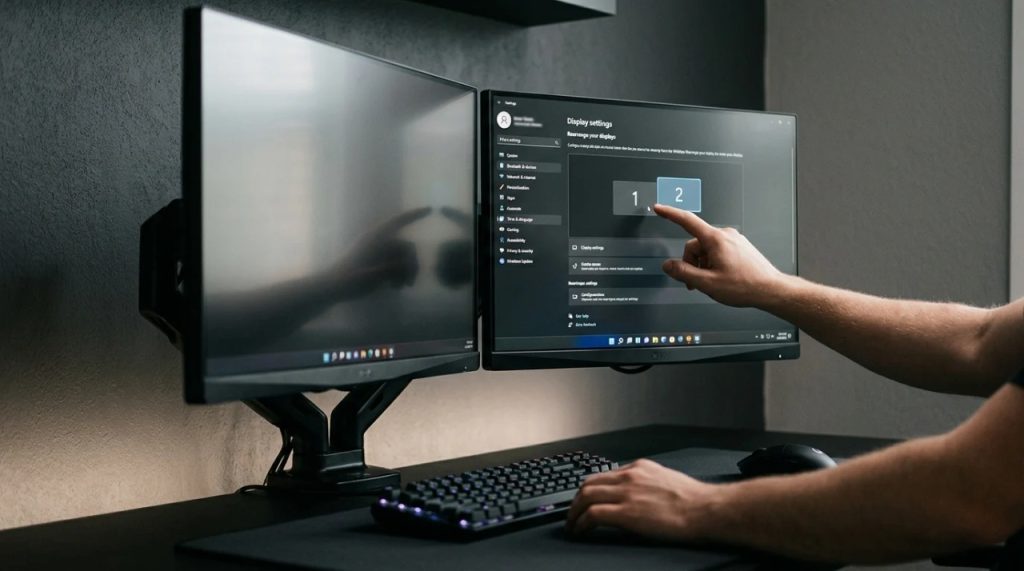
Web developers spend most of their working hours reading text: code, error logs, documentation, pull request comments. The quality of that reading experience depends almost entirely on pixel density and screen size, and the gap between 1080p and 1440p is more significant than the numbers suggest. At 1440p on a 27-inch panel, text sharpens noticeably, and you can fit a terminal and a browser side by side without either feeling cramped.
A dual-monitor configuration is useful, but the arrangement matters as much as having two screens. The instinct is to put a primary monitor directly ahead and angle a secondary to one side, which means turning your head to look at it. A better layout for sustained coding puts both monitors roughly side by side in front of you, angled slightly inward, at the same height. Portrait orientation on a second screen works well specifically for reading long files or API reference documentation, where vertical real estate matters more than horizontal.
Monitor arms are worth the cost. Being able to set height, depth, and tilt precisely, rather than relying on what a fixed stand allows, means your eyes land at exactly the right level relative to your seated position. Most built-in stands offer three or four height positions. An arm offers continuous adjustment, which matters more as the workday gets longer.
Connectivity: Cables, Hubs, and What Actually Fails
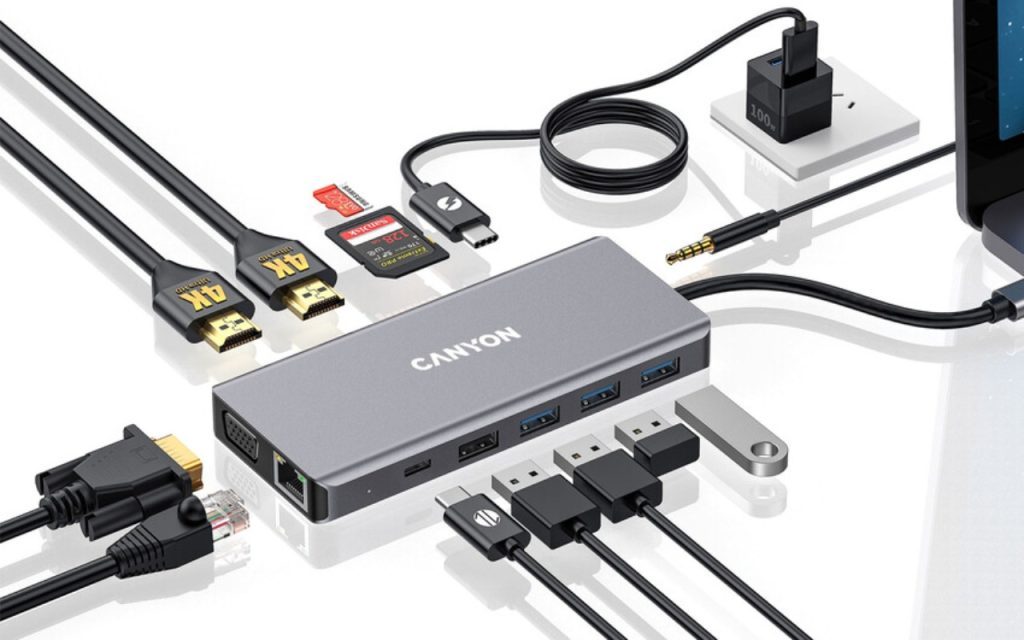
The cable situation in most home offices develops the way debt does: gradually, then all at once. A webcam here, a second monitor there, a USB audio interface for calls, and suddenly the back of the desk looks like a server room that no one planned. The practical consequence is signal issues and power delivery failures that show up as frustrating, intermittent problems.
A cheap USB hub can cause a monitor to flicker at certain resolutions, introduce latency in input devices, or fail to deliver enough wattage to charge a laptop under load. According to the HDMI Forum, passive cable performance is rated to specific bandwidth thresholds, and running a 4K display at 60Hz over a cable rated for a lower spec is one of the more common sources of display issues that developers spend time diagnosing as software problems when the fix is simply replacing a cable.
For USB-C hardware, a hub with native DisplayPort output and a dedicated Ethernet port is a more reliable solution than HDMI adapters chained together. Label your cables. This sounds unnecessary until something stops working mid-deadline.
A Keyboard and Pointing Device You Won’t Hate in Two Years
Keyboards are one of the purchases developers consistently underinvest in, usually because whatever came with the machine is fine. This logic holds for about six months of casual use. After a year of sustained typing, the difference in tactile feedback, key travel, and actuation consistency between a quality keyboard and a budget one becomes very apparent in the hands and wrists.
For developers typing intensively, testing mechanical switches with different actuation characteristics is worth the effort. Linear switches require less deliberate force and are quieter in shared spaces; tactile switches give physical confirmation that the keypress registered without having to bottom out the key. Neither is objectively better; it comes down to personal typing style and noise tolerance. What is fairly consistent across people is that membrane keyboards produce a different kind of repetitive fatigue than a well-chosen mechanical switch does, and that difference compounds over months.
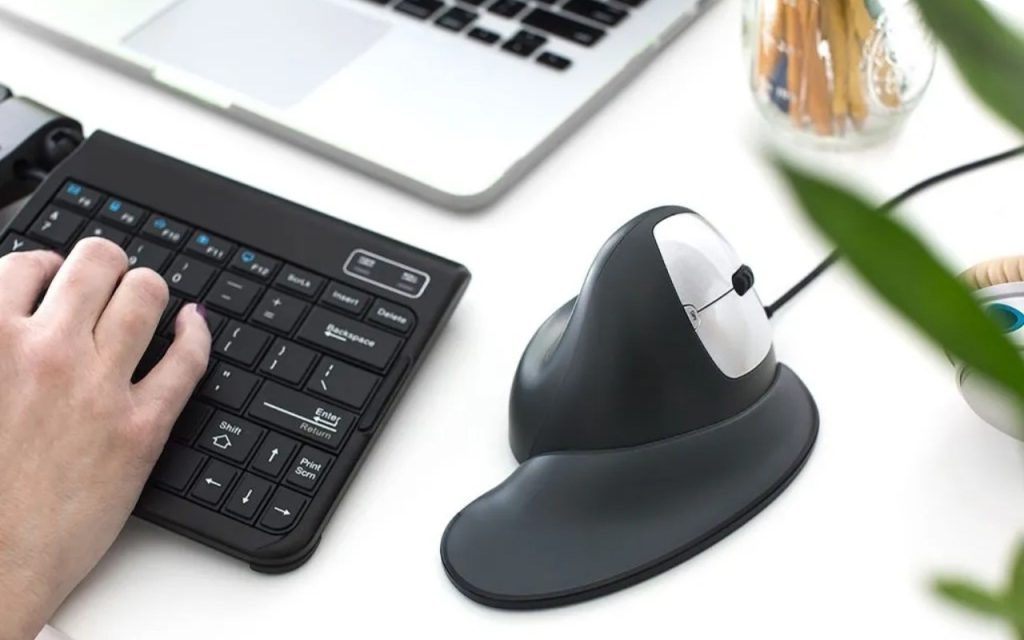
Pointing devices get less attention than they deserve. A standard mouse requires forearm pronation for the entire duration of use. A vertical mouse positions the hand in a more natural orientation and reduces that load considerably. Trackballs eliminate wrist movement entirely. Testing options in person is more informative than reading reviews, since the preference is largely tactile.
Ergonomics Beyond the Chair

The chair receives most of the attention in ergonomics conversations, and that makes sense: it is the most expensive upgrade and the most visible. But a high-quality chair addresses only one variable in a system with several. You can spend considerably on seating and still end the day with tension in the upper back and neck if the monitors are positioned wrong or the keyboard angle creates an awkward arm position.
Desk height is the correct starting point. Forearms should rest roughly parallel to the floor when hands are on the keyboard, which for most people corresponds to a desk surface between 27 and 30 inches from the ground. Standard fixed desks sit at 29 to 30 inches. For shorter individuals, a keyboard tray that drops the typing surface by 2 to 3 inches is often more effective than adjusting posture to compensate. OSHA’s computer workstation ergonomics guidance outlines the relationship between forearm angle, shoulder positioning, and cumulative discomfort in more detail.
Eye level is a separate adjustment from chair height. The top of the primary monitor should sit at or just slightly below eye level. Most people position monitors too low and tilt them upward to compensate, which loads the neck over a long day differently than simply looking forward.
Network Reliability for Developers Who Ship

A flaky connection costs more than it appears to on any single day. For developers running CI/CD pipelines, syncing large repositories, or working against cloud-hosted development environments, the reliability difference between a direct Ethernet connection and a contested Wi-Fi channel is not theoretical. It shows up in upload times, SSH session stability, and whether video calls remain usable when someone else is streaming in the same space.
Wi-Fi is adequate for most work. It is never as consistent as a wired connection. Running a single Ethernet cable from the router to the desk costs less than most mechanical keyboards and eliminates packet loss entirely. If the physical run is impractical, a dedicated access point placed close to the workspace is a meaningful improvement over relying on whole-home coverage from a distant router.
Connection quality is also partly a configuration matter. Keeping DNS resolution fast and deterministic reduces intermittent delays that appear when switching frequently between development domains. For local development and testing across multiple environments, a reliable network connection becomes a background assumption rather than a daily variable. That is the point: the less you think about the setup, the more attention you have for the work itself.